
Transaction Report
The StriveScan Transaction Report provides a real-time overview of registrations, revenue, fees, refunds, and payouts for a registration form. Use this report to track institution registrations, review financial activity, and manage access to your event. The data displayed updates automatically as registrations are submitted and payments are processed.
How To Access Your Transaction Report Dashboard
StriveScan will invite fair coordinators and association leaders with financial oversight to access the Transaction Report Dashboard.
All invitation emails come from no-reply@strivescan.com with a prompt to create a StriveScan account and/or access your dashboard.
Where to Find Your Transaction Report
- Log in to your StriveScan account. Ensure you are in the Dashboards section of the website.
If you have also scanned barcodes in the past, you will have the option to switch between the two sections of the StriveScan website: "Main App" (scanning) and "Dashboards". Click your name in the upper-right corner to switch.
- Under Form Dashboards, click on Transaction Reports.
- Your Published (active) Transaction Reports should appear. You can also search by form and/or fair title or use Fair Filters to find Transaction Reports.
Summary Metrics
At the top of the Transaction Report, you'll find total counts for your registration form:
- Total Submissions: the number of completed form submissions received
- Total Registrations: the total number of fair registrations across all events associated with the form
Registrations by Fair
This section provides a breakdown of registrations for each fair included in the form.
Displayed information includes:
- Fair Name
- Fair Date
- Registrations: the number of registrations associated with each fair
- Unregistered: the number of unregistered institutions that have scanned at each fair (available after the event concludes)
- Revenue: the total registration revenue for each fair
Use this table to quickly identify registration activity across multiple fairs.
Pro-Tip: click on the Fair Name to bring you directly to your Fair Dashboard to track student registration for your event.
Financial Summary
The Financial Summary provides an overview of all money collected and distributed through the form, including:
- Gross Revenue: the total registration revenue collected before refunds and fees
- Refunds: the total amount refunded to registrants
- StriveScan Fees: the total fees retained by StriveScan
- Transaction Fee: total credit card processing and payment transaction fees associated with registrations
- Anticipated Payout: the estimated amount that will be paid to the host after fees and refunds are deducted
Note: Anticipated Payout is subject to change if additional registrations, cancellations, walk-ins or refunds occur.
Transactions
The Transactions table displays every registration transaction associated with the form. Each transaction can contain multiple fair registrations.
Information available includes:
- Order ID: specific to each registration form submission
- Status: registration status (possible options include: Completed, Refunded, Canceled)
- Institution: institution name
- Department: department name, if applicable (e.g. School of Journalism)
- Date: date of registration
- Amount: amount paid
- Registrant Name: name of rep who submitted the registration form
- Registrant Title: title of rep who submitted the registration form
- Registrant Email: email of rep who submitted the registration form
- CC Email: email that rep indicated should be copied on any fair communication
- Fairs: number of fairs registered for in the specific transaction
- Responses to Add-On Questions
- Pricing Group Contact: email used to provide access to the form (if applicable)
- Last Updated: date the transaction was last updated
You can use the search bar to search by institution, attendee, or email, or click Manage Columns to select which columns to display in the table.
Providing Refunds & Processing Refunds
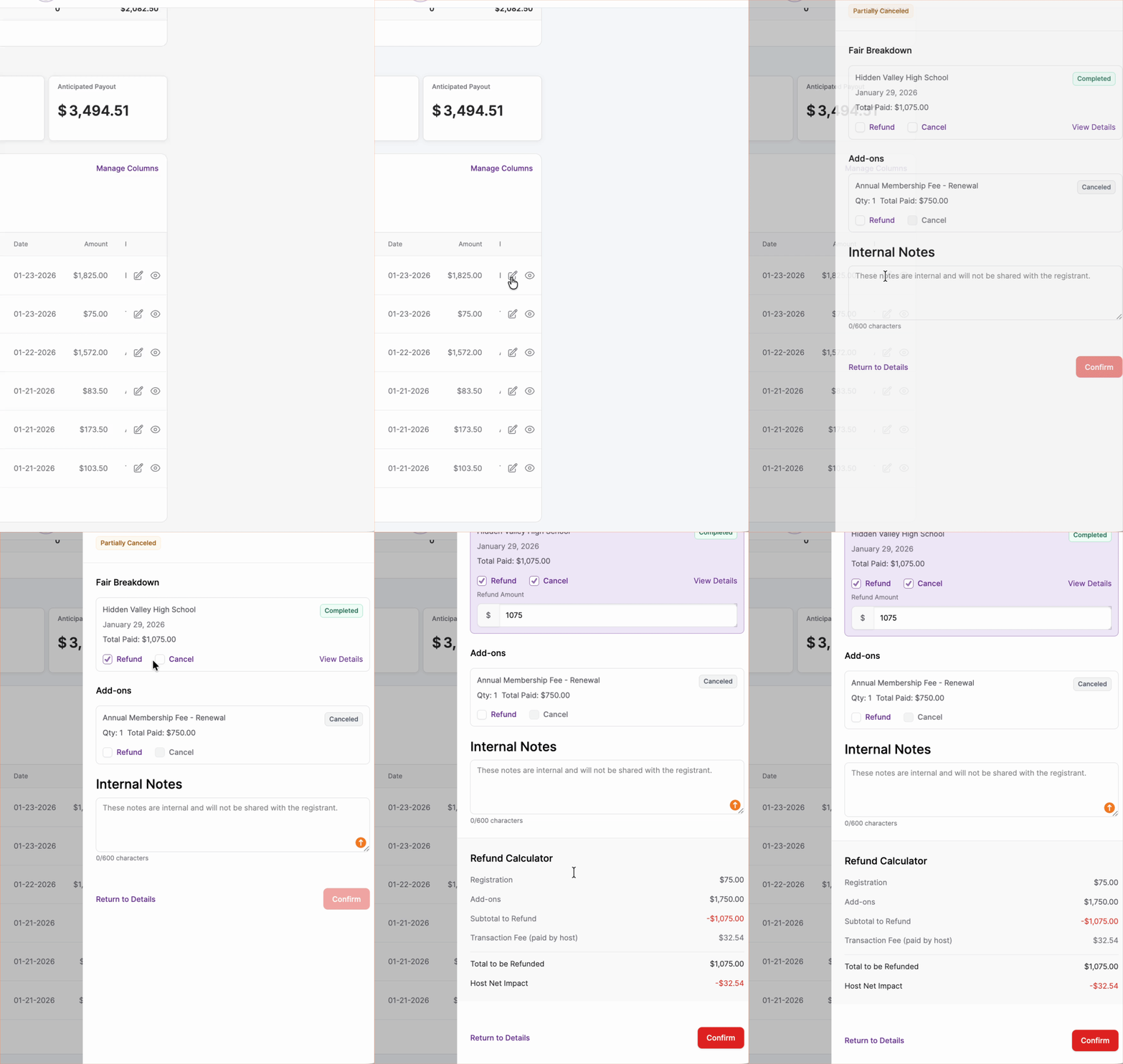
Refunds are at the discretion of you as the Fair Host. From your Transaction Report, you can cancel and/or provide a refund for a representative.
- Find the Registration in the Transactions Table
- Click the Write Icon (Manage Transaction)
- Select Refund, Cancel, or Refund and Cancel
- Select the Amount you wish to refund. Our refund Calculator will assist, based on your Transaction Fee collection.
- Upon Canceling and/or Refunding, an email will be sent directly to the registered representative.
Managing Transactions
Each transaction includes action buttons that allow hosts to:
- View registration details
- Edit registration information
- Process refunds (if applicable)
- Review transaction history
Available actions may vary depending on your permissions.
Exporting Data
To download your registration and financial information:
- Click Export in the upper-right corner of the page.
- Choose your desired export format.
- Download the file for reporting or reconciliation purposes.
Exports include all transaction records visible in the report at the time of export.
Sharing the Transaction Report
You are welcome to share the Transaction Report with any collaborators on your team.
- Click "Share" in the upper-right corner.
- Enter the email addresses of those you would like to invite.
- Choose the appropriate Access: Read/Write or Read Only.
- They will receive an invitation to view the Transaction Report from
no-reply@strivescan.com
Caution: Anyone you share the Transaction Report with and give Read/Write Access to will be able to take financial actions within the Transaction Report. You should take this information into careful consideration when deciding appropriate levels of access for new users.
Managing Access & Pricing
The Manage Access & Pricing button in the upper-right corner allows hosts to:
- Configure registration pricing
- Manage invite-only access
- Control visibility settings
- Update pricing groups and registration permissions
Changes made in Access & Pricing are reflected throughout the registration process.
Frequently Asked Questions
Why doesn't my Anticipated Payout match Gross Revenue?
Anticipated Payout reflects Gross Revenue minus applicable refunds, StriveScan fees, and transaction fees.
Can I export transaction data?
Yes. Use the Export button to download transaction information for reconciliation and reporting.
Why are my registration counts different from submission counts?
A single submission may contain registrations for multiple fairs, causing Total Registrations to exceed Total Submissions.